
Android phones are widely used for communication, entertainment, mobile payments, and online gaming in Bangladesh. Many users download applications through official app stores, while others look for APK files when an app is not available through their usual source. However, downloading an APK requires extra care because an unknown file may contain harmful software or request unnecessary permissions.This guide explains Android APK Download in Bangladesh, check a file before installation, install it on a compatible phone, and solve common problems.Whether you want a utility app, an entertainment platform, or a mobile game, these steps can help you make a more informed decision.
What Is an Android APK File?
APK stands for Android Package Kit. It is a file format that Android uses to distribute and install applications. You can think of an APK as an installation package for an Android app.
When you install an app from an APK file, your phone uses that package to add the application to the device. Some developers distribute APK files directly, while others use app stores or alternative distribution systems.
Before downloading any file, remember these basic points:
- An APK file is not automatically safe just because it installs successfully.
- Some apps require a specific Android version or device configuration.
- An app downloaded from an unfamiliar website may contain modified or harmful code.
- Some applications use split APKs or other package formats that require a compatible installer.
- A successful installation does not guarantee that the app will work correctly.
For most users, an official app store remains the preferred starting point.
Where Can Bangladeshi Users Download Android Apps?
Bangladeshi Android users have several ways to find mobile applications. The best source depends on the app, its developer, and its distribution method.
Google Play Store
The Google Play Store is usually the simplest option for finding Android applications. It provides app listings, developer information, compatibility details, and update options.
Before installing an app, check its developer name, description, reviews, requested permissions, and available privacy information. Reviews can provide useful clues, although they do not guarantee that an app is trustworthy.
The Developer’s Official Website
Some developers provide APK files through their own websites. If you choose this method, confirm that the website genuinely belongs to the developer.
Check the domain spelling carefully and avoid download buttons that redirect to unrelated pages. A website that copies an app’s name or logo may not be an authorized source.
Third-Party APK Websites
Some websites collect Android installation files for different apps and games. Their quality and verification practices can vary considerably.
Before using such a website, look for clear developer information, a genuine source for the file, a privacy policy, and a reliable explanation of the app’s version and requirements. Avoid files advertised with exaggerated promises or requests to disable important security protections.
Winstaka.com publishes informational guides about mobile apps and gaming platforms. Readers should still verify the original source and current details of any app before installing it.
Android APK Download in Bangladesh
Follow these steps before saving an APK file to your Android phone.
Search for the Correct Application
Start by identifying the exact app you want. Check the spelling of its name and look for the developer’s official website or app-store listing.
Do not assume that two apps with similar names belong to the same company. Fake applications sometimes copy the names, icons, and designs of genuine services.
Check the Website Address
Open the source website and inspect its address before downloading anything.
- Check for spelling mistakes in the domain.
- Look for the developer’s contact and privacy information.
- Avoid websites that repeatedly redirect you to unrelated pages.
- Do not enter passwords, OTPs, or payment details on suspicious pages.
- Remember that HTTPS protects the connection but does not prove that a website is trustworthy.
If you cannot verify the source, it is safer to look for another distribution method.
Review the App Information
Check the available version number, release information, Android requirements, and developer details. Compare these details with the official listing whenever possible.
A newer-looking version number does not necessarily mean that a file is genuine. Avoid downloading files with unclear names or misleading claims about special rewards, guaranteed income, or exclusive features.
Download the File
If the source appears trustworthy, tap the genuine APK download link and wait for the download to finish.
Check that the downloaded file has the expected name and file type. If the website offers several unrelated downloads, close the page instead of guessing which button is correct.
Never install a file simply because a website displays a large Download button.
Scan and Inspect the File
Use Google Play Protect or other reputable security tools available on your device to check for potential threats. Security scans can help identify suspicious software, although no scan can guarantee complete protection.
If your phone or security tool displays a warning, stop and investigate it. Do not turn off security features merely to force an installation.
How to Install an APK on an Android Phone
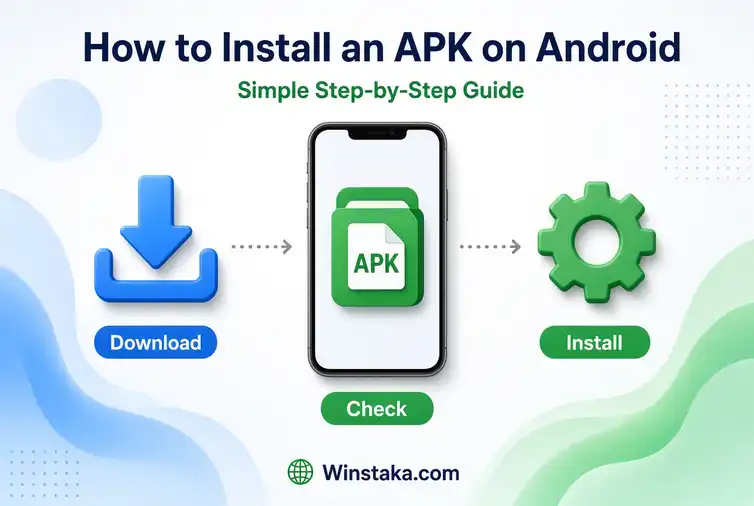
Android menus can differ by phone manufacturer and operating-system version. The following steps describe the general process for a compatible APK file.
Step 1: Open the Downloaded File
Open your phone’s Files or Downloads app. Find the APK file you saved and tap it to begin installation.
If you cannot find it, check the Downloads folder or the download history in your browser.
Step 2: Allow Installation From the Relevant Source
Your phone may display a message saying that it cannot install apps from this source.
If you have verified the file and decided to proceed, Android may let you open Settings and allow that particular browser or file manager to install unknown apps. The menu may be called Install unknown apps or something similar.
Only enable this permission for a source you trust. Keep it disabled for other apps, and turn it off again when you finish if you no longer need it.
Step 3: Review the Installation Screen
Read the information displayed by Android. If the app requests unexpected access or the system displays a security warning, do not ignore it.
An application that only needs to provide a simple function may not need access to your contacts, SMS messages, microphone, or location.
Step 4: Complete the Installation
If Android accepts the package and you are satisfied with the checks, tap Install and wait for the process to finish.
You can then tap Open or locate the app icon on your home screen or in your app drawer.
Step 5: Check the App Before Using It
Open the application and confirm that it behaves as expected. Review its permissions under your phone’s app settings and remove any access that is not necessary for its function.
If the app asks for sensitive information immediately, displays unexpected advertisements, or redirects you to suspicious websites, stop using it until you can verify what is happening.
Common APK Installation Problems and Their Solutions
Not every APK works on every Android phone. The following table explains some common errors and practical ways to investigate them.
| Problem | What you can try |
|---|---|
| App not installed | Check compatibility, storage, and whether an existing version conflicts with the package. |
| Parse error | The file may be incomplete, corrupted, or incompatible with your Android version. |
| Download failed | Check your internet connection and available storage before retrying from a trusted source. |
| App keeps crashing | Restart the phone and check for a compatible update. |
| Installation blocked | Review the security warning and verify the file before considering any installation permission. |
| App requests an update repeatedly | Confirm that you have the correct version and are using the developer’s genuine service. |
| App does not open | Check device requirements and whether the service is currently available. |
Avoid deleting an existing app or clearing its data without checking whether you have a backup. You could lose locally stored information or access to your account.
How to Protect Your Phone After Installing an APK
Safe installation does not end when the app icon appears. Continue checking the application’s behavior and permissions.
Review App Permissions
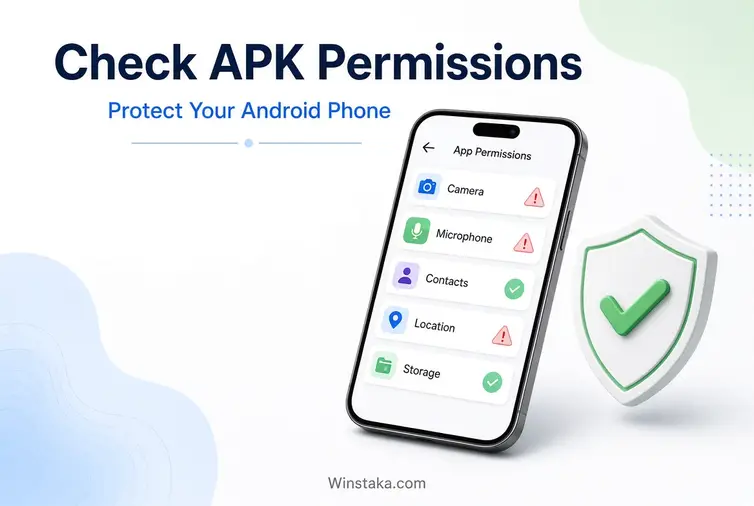
Open Settings, select Apps, and choose the application you want to inspect. Depending on your Android version, you may find a Permissions section where you can review or change access.
Pay particular attention to permissions involving SMS messages, contacts, accessibility services, notifications, files, the camera, and the microphone. Some permissions are necessary for certain functions, but others may be unrelated to the app’s purpose.
Keep Android and Your Apps Updated
Install security updates for your phone when they become available. Update applications through their trusted distribution source, and avoid replacing a working app with an unknown file that claims to be a newer version.
If the developer no longer supports your Android version, consider whether a safer alternative is available.
Protect Your Passwords and OTPs
Use a strong, unique password for each important account. Never share an OTP, password, recovery code, or payment PIN with an app operator or someone claiming to provide technical support.
Be cautious if an application asks you to install another file, share your screen, or grant accessibility access without a clear reason.
Remove Suspicious Applications
If an application behaves suspiciously, disconnect from the internet if necessary, review its permissions, and remove it when safe to do so. Run a security scan and change important account passwords from a trusted device if you suspect your credentials have been exposed.
If you cannot uninstall an app or it has unusual administrative privileges, consult your device manufacturer’s official support instructions.
What Should Users in Bangladesh Know About Gaming APKs?
Many Bangladeshi users search online for mobile games, casino-style platforms, reward apps, and other entertainment services. Before installing one of these applications, consider more than its appearance or advertised benefits.
- Check the identity of the operator and the source of the APK.
- Read the platform’s terms, privacy policy, and account rules.
- Confirm whether the service and its activities are permitted under applicable Bangladeshi law.
- Do not assume that advertised bonuses or rewards guarantee any income.
- Check deposit, withdrawal, refund, and account-closure conditions where relevant.
- Never provide your bKash, Nagad, Rocket, bank, or other payment credentials to an unverified service.
- Use official payment channels and verify transactions through your own account.
- Do not spend money you need for food, rent, education, or other essential expenses.
The availability of a mobile app does not establish that the service is licensed, legitimate, or financially safe. Real-money gaming can involve losses, and users should not treat it as a reliable source of income.
How to Choose an APK Website You Can Trust
Before relying on an APK website, use this checklist to assess its credibility.
- Does the website clearly identify the app developer or original source?
- Can you compare the file’s details with an official listing?
- Does the website explain compatibility and installation requirements?
- Are the privacy policy and contact details easy to find?
- Does the download link lead to the expected file?
- Does the website avoid false claims about guaranteed rewards or profits?
- Can you leave the site without being pressured to share personal or payment information?
No single checklist can prove that a file is safe. If important information is missing or the source seems suspicious, do not install the application.
Final Thoughts On Android APK Download in Bangladesh
Android APK Download in Bangladesh can be straightforward when you use a trustworthy source and check compatibility first. For users in Bangladesh, the safest approach is to prefer official distribution channels, review app permissions, keep Android updated, and protect account and payment information.
If you use a third-party APK website, take time to verify the file rather than trusting its name or appearance. A few careful checks can reduce avoidable risks and help you make better decisions about the apps you install.
Winstaka.com aims to help readers understand mobile applications through practical guides and clear information. Always verify current app details with the original developer, and remember that no download guide can guarantee that every application is safe.
FAQs About Android APK Download in Bangladesh
Is downloading an APK legal in Bangladesh?
The legality depends on the app, its content, the source, and the applicable laws. APK files are an Android distribution format, but that does not make every application or activity lawful. Check the rules that apply to the particular service.
Can I install an APK on any Android phone?
No. The app must support your Android version and device architecture. Some packages also require additional components or a compatible installer.
Is Android APK Download in Bangladesh safe if my phone downloads it successfully?
No. A completed download only means that the file was received. It does not prove that the file is genuine or free from malware
Why does Android block an APK installation?
Android may block an installation because of security restrictions, incompatibility, a damaged file, or another problem. Check the warning and verify the file before deciding what to do.
Can I update an APK without losing my data?
Sometimes. A compatible update signed by the same developer may preserve app data, but this is not guaranteed. Back up important information before updating, and avoid uninstalling an existing version unless you understand the consequences.
Should I turn off Play Protect to install an APK?
No. Do not disable Play Protect simply to force an installation. Investigate the warning and look for a verified source or an official distribution method instead.